One panel for a tidy desktop, alarms, schedules, documents, quick phrases and screenshots. Time and efficiency, under control
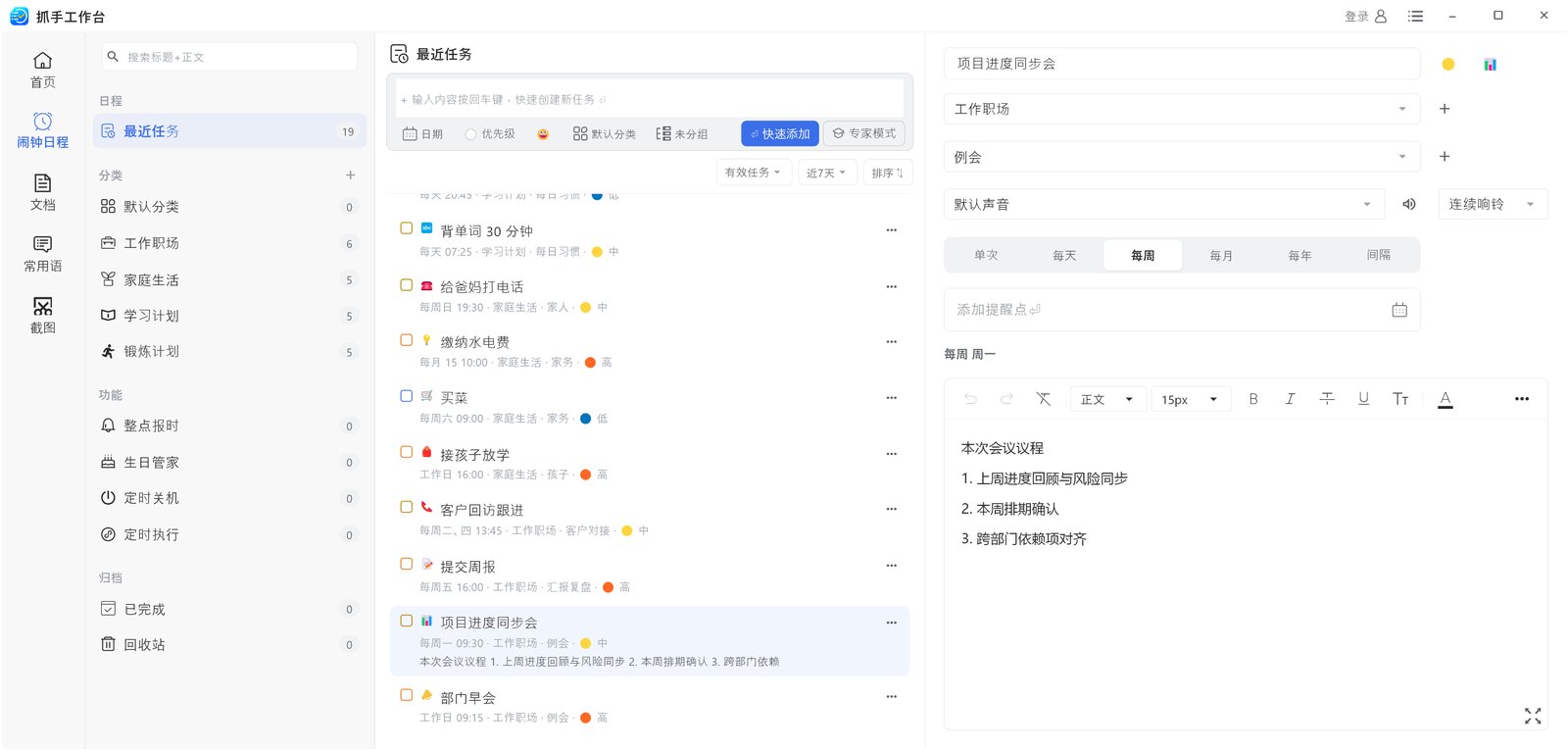
Desktop alarms and schedule reminders, with interval and recurring tasks. Get a nudge every 45 minutes to drink water, or before your meeting — no need to remember. Learn more about Desktop Alarm Clock →
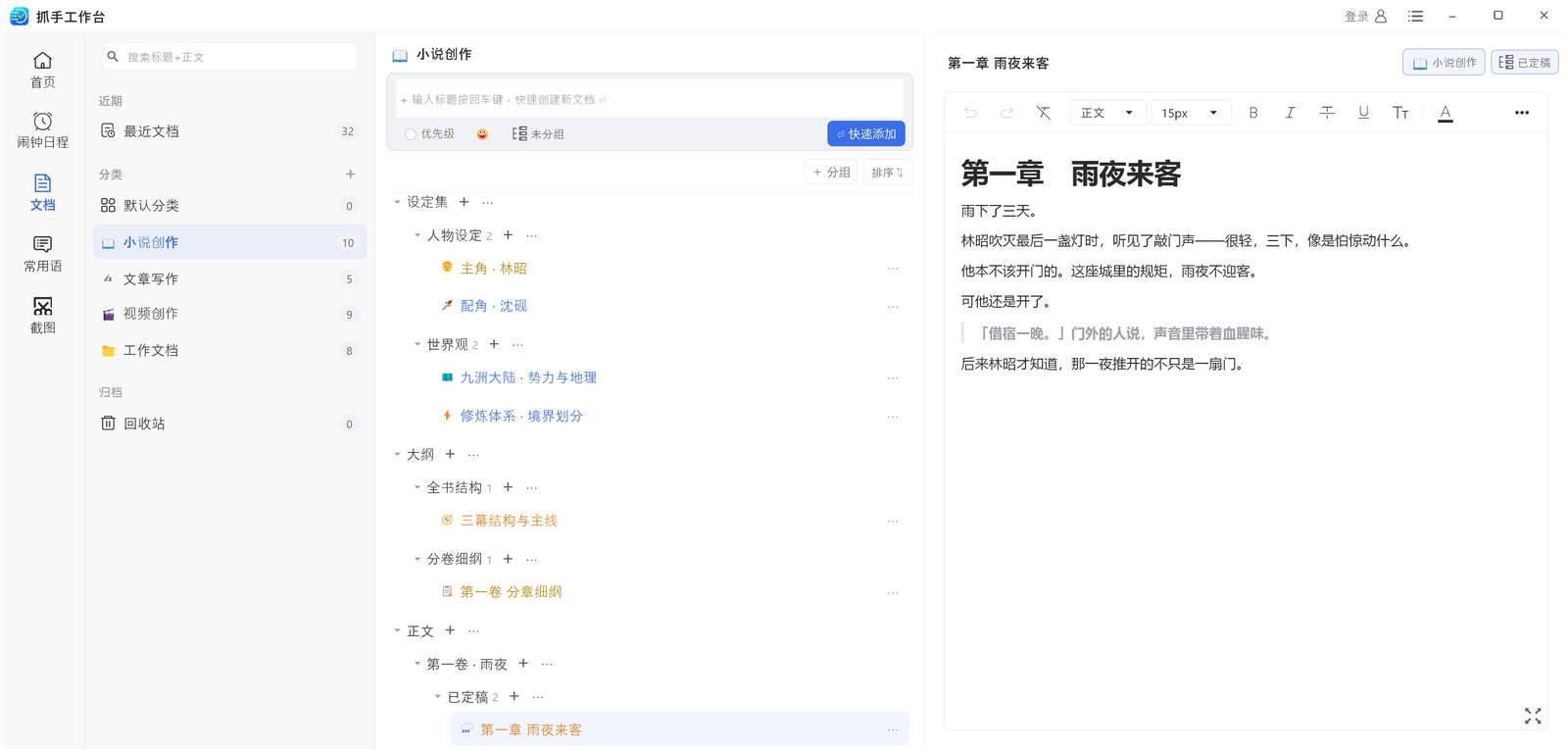
Cloud notes: nested groups keep “world-building / outline / manuscript” tidy, with rich-text editing, inline images and Markdown paste. Built for people who write long. Learn more about Cloud Notes →
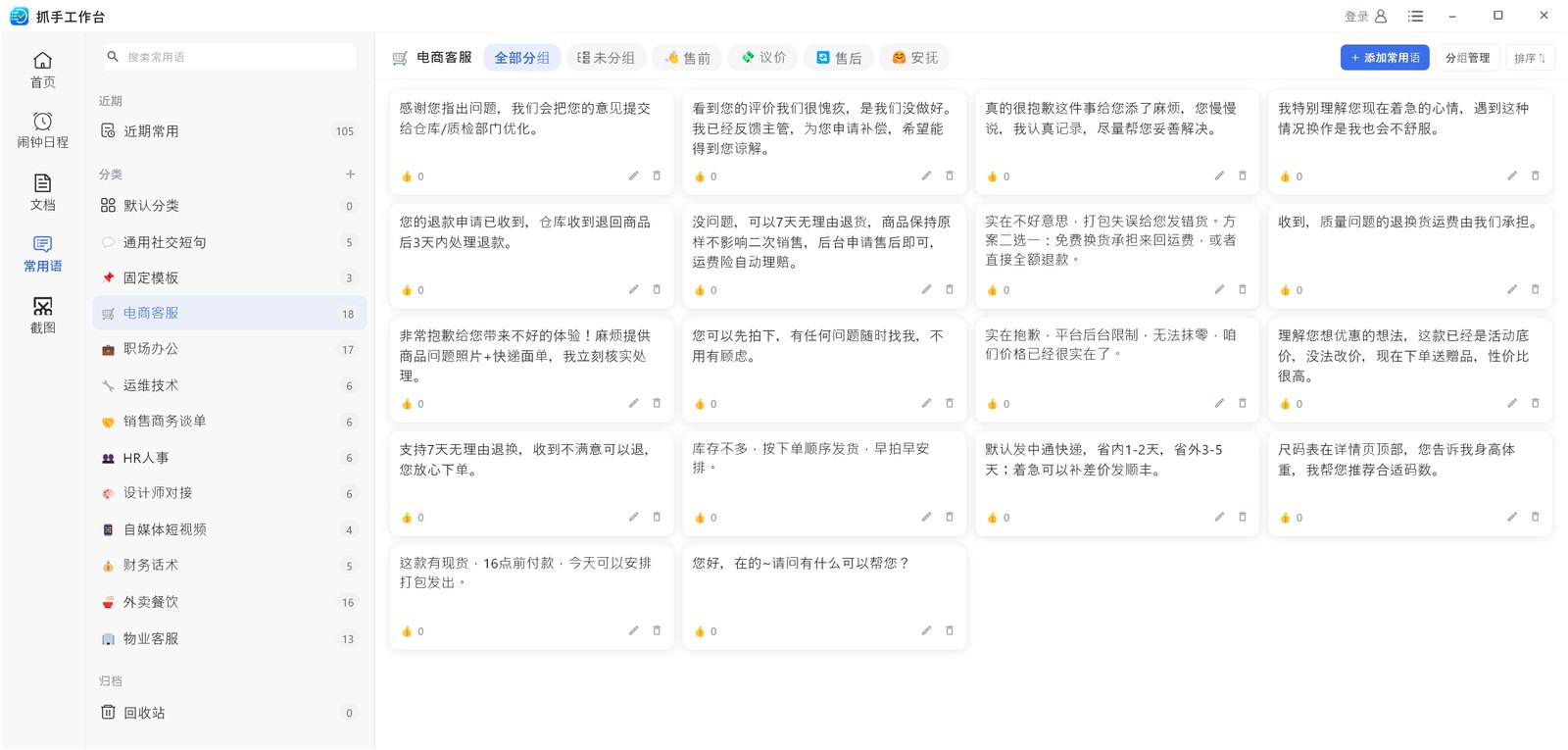
Support scripts, sales templates and everyday replies grouped by scenario. One click pastes it wherever you are typing, and emoji or images make long scripts easy to spot. Learn more about Quick Phrases →
Birthdays, anniversaries and holidays, with reminders 1, 3 or 7 days ahead. Lunar calendar supported, and you only enter it once. Learn more about Birthday Reminders →
Overnight download, render or backup? Set a time and your PC shuts down or restarts on its own — or shut down in N minutes. Learn more about Scheduled Shutdown →
A reminder every full hour, with selectable chimes — and it only rings during working hours, so lunch and evenings stay quiet. Learn more about Hourly Chime →
A hotkey, a drag, done. Pin the shot to your screen to transcribe or compare — no window switching and no lost screenshots. Learn more about Screenshots →
Add deadlines, exams and holidays and it counts down automatically, updated every day — always visible at a glance. Learn more about Countdown Days →
Tips, use cases and workflows Go to help center →
Install steps, uninstall and where your data lives on Windows and macOS.
What to do after installing: auto-start, arranging the home cards, and a quick tour of alarms, documents and quick phrases.
Shortcuts for screenshots, quick phrases and the rich-text editor — and how to change them.
Common questions about install, sync and accounts See all questions →
Windows 10/11 (64-bit) and macOS 12 or later (both Apple Silicon and Intel).
This is a routine warning for files that have not been downloaded much yet — it is not a virus report. Open the downloads list in Chrome or Edge and choose “Keep” / “Keep anyway”. If a security suite blocks it, allow it once and download again.
That is SmartScreen’s default block for new programs that have not yet built up download reputation. Click “More info” → “Run anyway” to continue. It does not affect the app once installed, and the prompt fades as more people download it.
No. Sign in with the same account on the new computer and your data syncs back; not signing in simply keeps everything local.
