
Install & uninstall
Overview
On Windows, just run the installer; on macOS, run one command in Terminal. The app and your data are stored separately, so updating or uninstalling never touches your data by default.
Install on Windows
-
Open the Download page and click Download under “Windows” — you get the installer (named like
work1024-setup-r3.exe, an online installer that fetches the latest version). On a slow or offline connection, use the offline full installer on the same page instead. If the browser warns that it doesn’t usually download this file, that is a routine warning for newly released programs — it is not a virus report; just follow the screenshots below.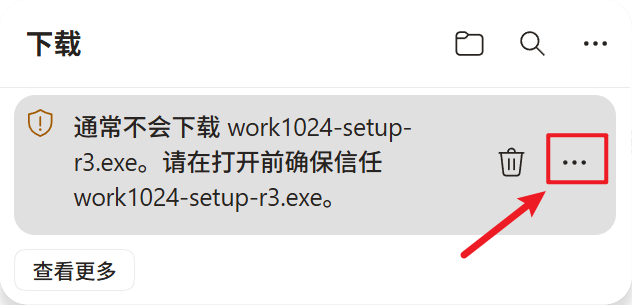
1. Warning — click “⋯” 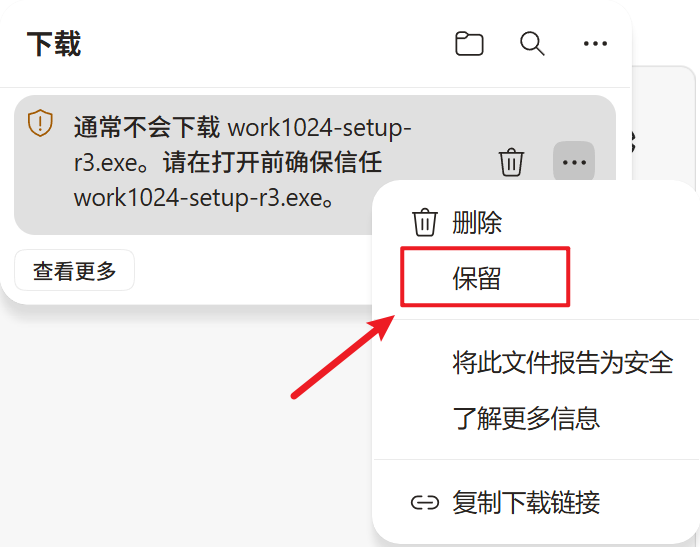
2. Choose “Keep” 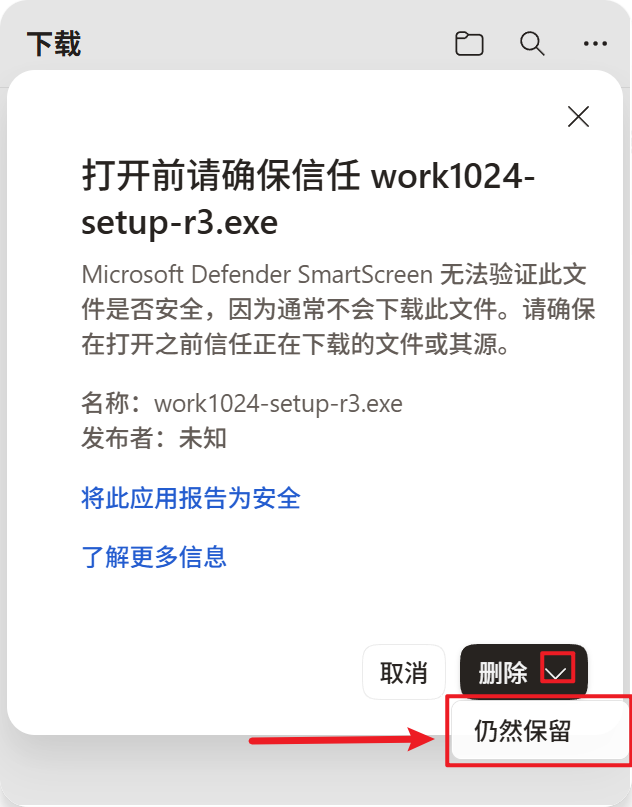
3. “Keep anyway” in the dialog -
Double-click it. If “Windows protected your PC” appears, click “More info” → “Run anyway” — this is a routine warning for newly released programs, not a virus report.
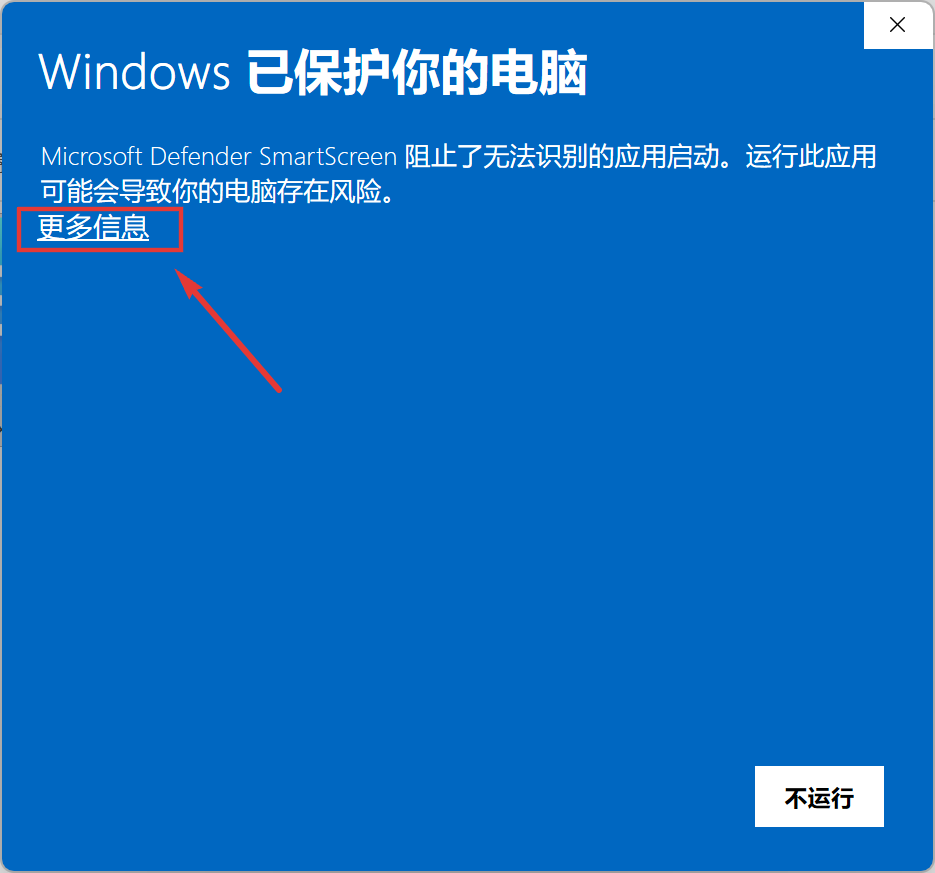
1. Click “More info” 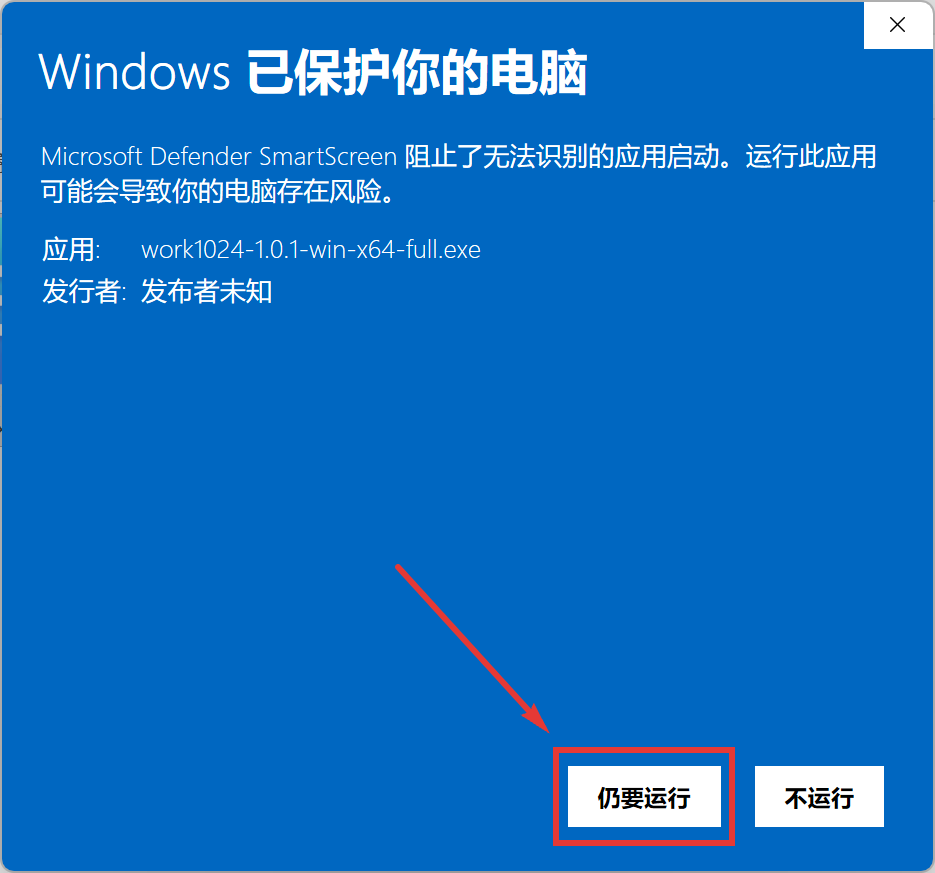
2. Then click “Run anyway” -
Follow the wizard. It installs to
%LOCALAPPDATA%\Programs\work1024by default — no administrator rights needed. You can also pick your own install location; if that location requires administrator rights, approve the User Account Control prompt and the installer will restart and continue automatically.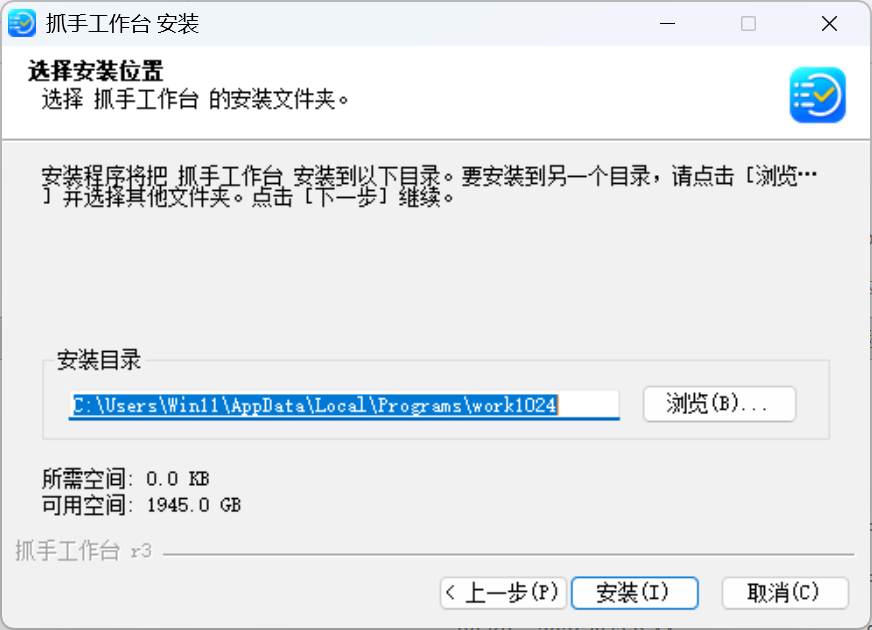
The default location is inside your user folder; you can change it -
When setup finishes, click “Finish” to launch the app.
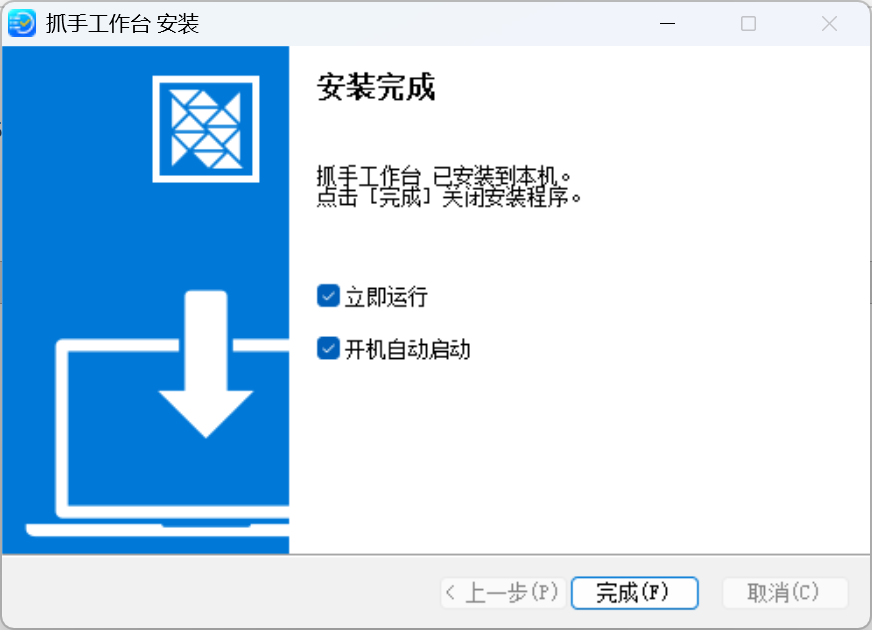
When setup finishes, click “Finish” to launch the app
Install on macOS
-
Open Terminal (Finder → Applications → Utilities → Terminal).
-
Paste this command and press Enter:
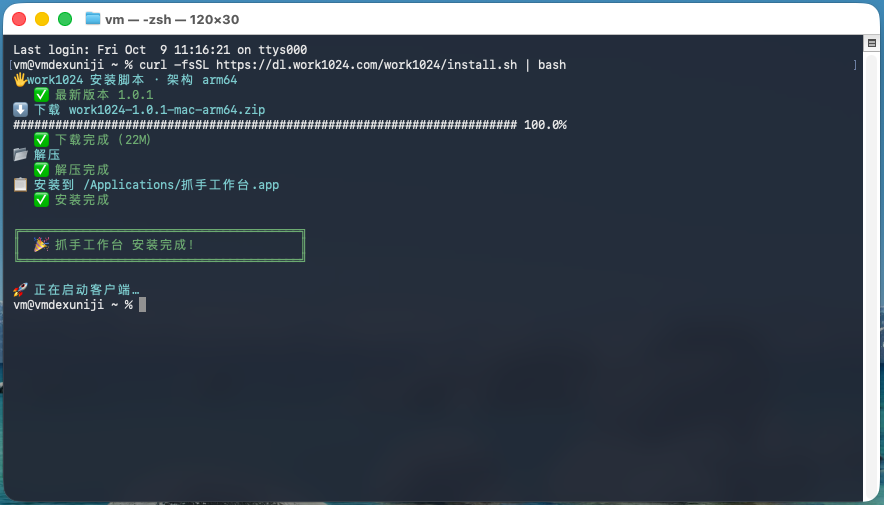
Run the command in Terminal — the script downloads, verifies and installs
curl -fsSL https://www.work1024.com/install.sh | bash- The script does everything: it detects your chip (Apple Silicon / Intel), fetches the latest build from the server and verifies its SHA-256, installs into Applications and launches the app.
- To update later, just run the same command again — or let the app check for updates itself.
Uninstall
Windows
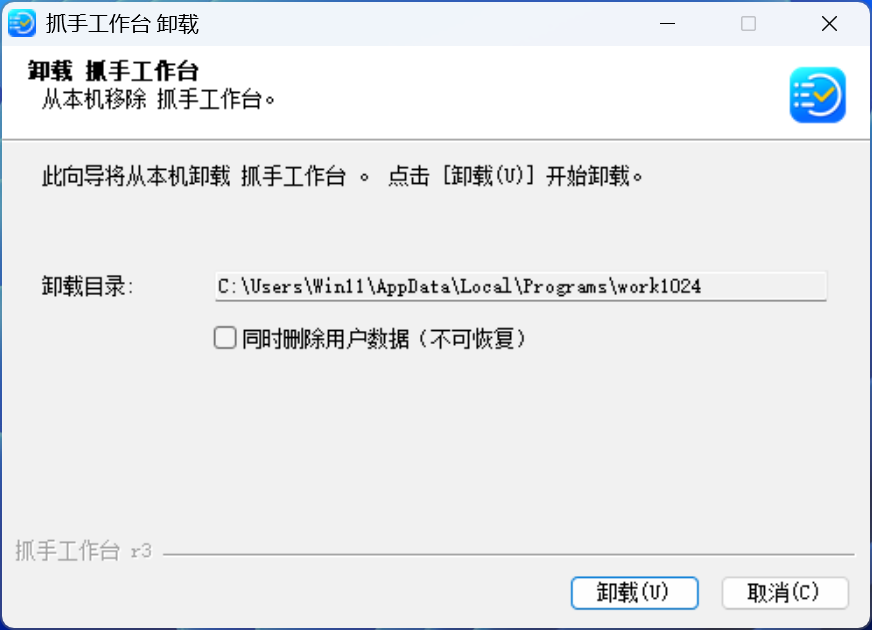
Open Settings → Apps → Installed apps, find work1024 and click Uninstall.
The uninstaller has a “also delete user data (cannot be undone)” checkbox:
- Unchecked (default): only the app is removed, your local data is kept (it is still there if you reinstall later).
- Checked: your local data is deleted as well.
macOS
- Quit the app first;
- Open Applications and drag 抓手工作台 to the Trash.
Still stuck?
- Download or install blocked by the system → see the FAQ
- Want the latest version → the app checks for updates automatically, or reinstall from the download page (your data is kept)